
Think of an assistant who needs addresses
Arjita Sethi explains connectors with a simple comparison. A new assistant needs instructions, so they know what to do. They need examples of good work, so they know what good looks like. And they need addresses. If you ask them to ship a box, they need to know where the shipping store is and where the box is going.
In a Claude project, those three things map neatly:
- Instructions are the steps it should follow.
- Files are the context it uses to follow those steps.
- Connectors are the addresses, the places it can pull information from or deliver work to.
Without a connector, Claude can only describe how you might book a hotel or check your calendar. With one, it can look at your actual calendar.
How to add a connector
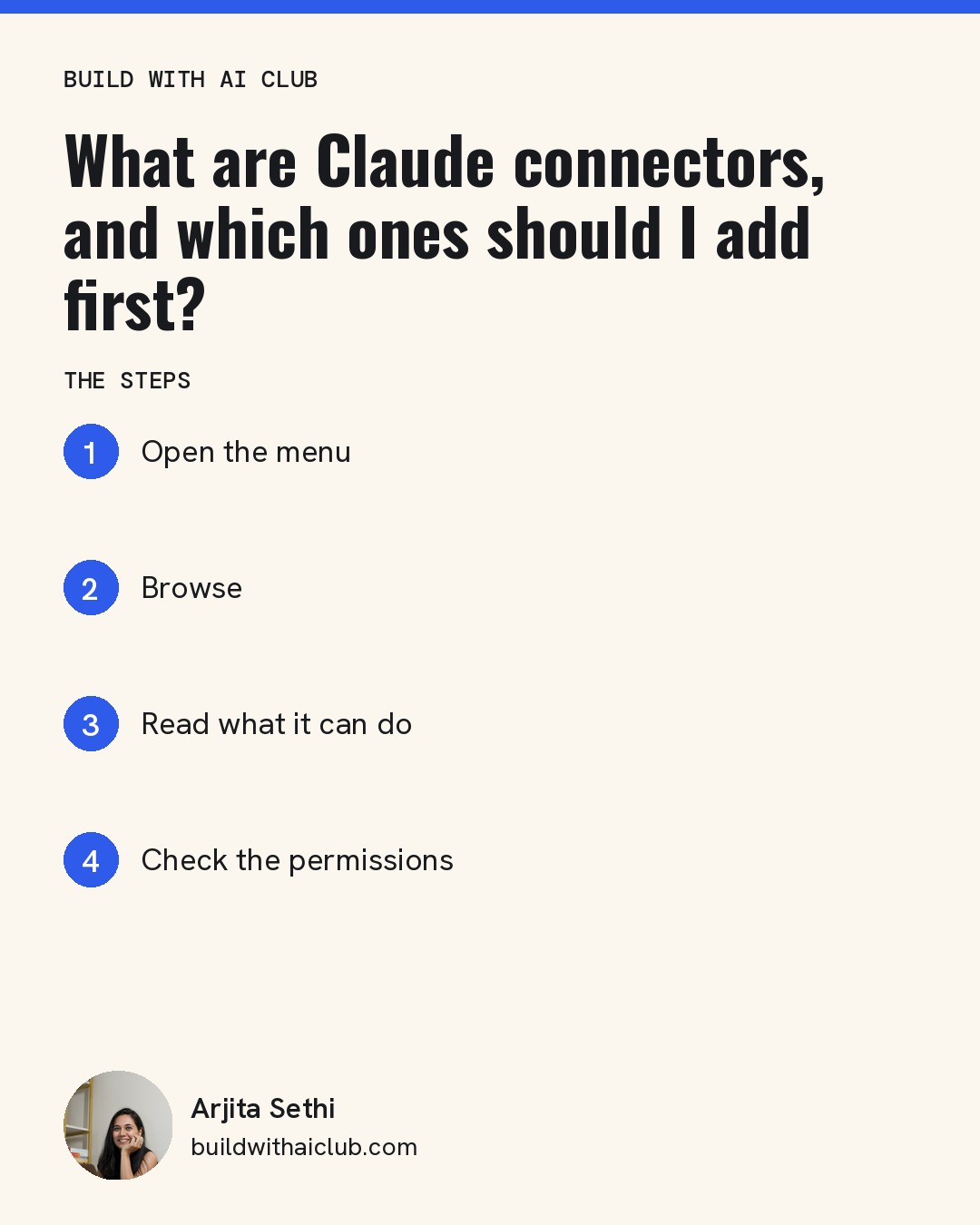
Step 1: Open the menu. In a chat inside your project, click the plus sign at the bottom left, then choose Connectors.
Step 2: Browse. Click Add connectors, then Browse connectors. It works like an app store for the tools you already use.
Step 3: Read what it can do. Under every connector, Claude shows what it will be able to do once connected. Read it before you click.
Step 4: Check the permissions. Some connectors ask for more than you need. When one participant connected Google Drive in the Oct 1 session, the permissions included trashing and updating files as well as reading them. Allow what the task requires and nothing more.
Which connectors to add first
Go back to the one task you wish would disappear from your week, and connect only the tools that task touches.
- If it's planning your week, start with your calendar.
- If it's finding and reusing your own documents, start with Google Drive or your Microsoft account.
- If it's content, connect the tool where your brand and past designs live. Arjita keeps Canva connected because it can pull her brand guides and earlier designs.
- If it's turning meetings into notes, connect your transcription tool. Arjita's favorite connector is the one for Wispr Flow, which transcribes her sessions so they can become content later.
Email is the connector people ask about most, and it deserves its own decision. Read tomorrow's post before you connect an inbox.
What a custom connector is
Not every tool appears in the directory, the same way not every app is in an app store. If you use software that was custom built, or a tool that hasn't published a connector yet, you can add a custom connector. For most non-technical people, the standard list covers what they need.
If a connector won't show up
In the Oct 1 session, a few people connected Google Drive in settings and still couldn't see it inside their project. The fix that worked was disconnecting, reconnecting and updating the permissions. If your account is on a Team plan, an admin may control which connectors are available.
Don't rush it
These features are changing every few weeks, so you won't miss anything by starting with one connector. Add the next one when a real task needs it.
Who this is for
This is for non-technical people who have built a Claude project and want it to work with their real calendar, files and tools. It's also for anyone nervous about giving AI access, because it shows you how to give only what a task needs.
Build it live: Add your first connector with Arjita tonight at the free Build with AI Club Wednesday session, 6 to 7 PM PT, at SHACK15 in San Francisco or online. https://luma.com/build-with-ai-club